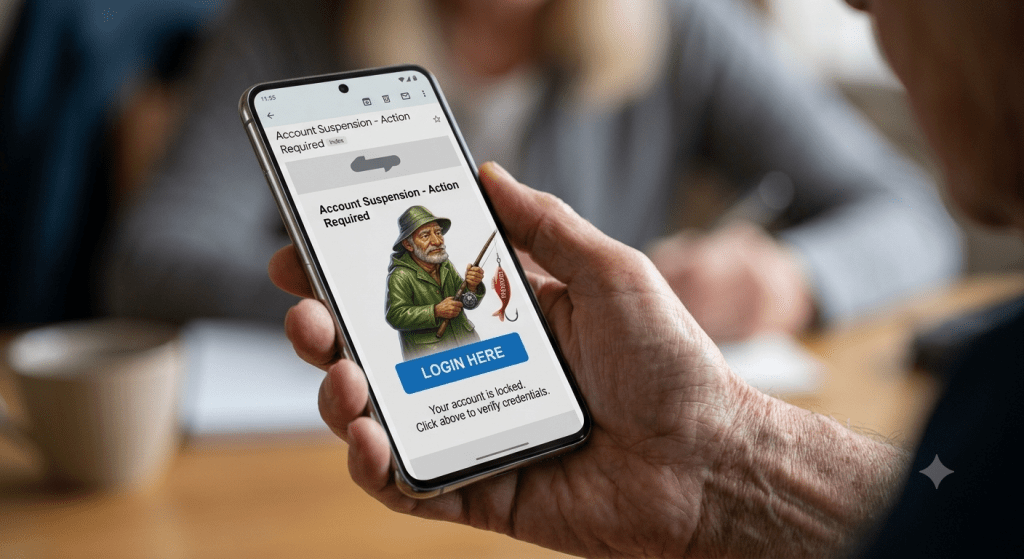
Recently, a few of our u3a members received convincing scam emails designed to look like messages from a well-known service provider.
The goal of these messages was simple: trick recipients into typing in their passwords so fraudsters could gain access to their accounts.
Scammers use legitimate-looking logos and branding to make their emails look genuine. Fortunately, no matter how clever the visual branding looks, there are reliable ways to spot a fake and protect yourself.
How Phishing Scams Work
"Phishing" is when a fraudster sends an email pretending to be an organisation you trust (like your email provider, bank, streaming service or government office). They typically claim there is an urgent problem—such as a locked account, an unpaid bill, or a security threat—and suggest you click a link to "fix" it. That link leads to a fake website designed to steal your login details or financial information. It might look just like the official site.
They're called "phishing" messages because the scammers are casting to thousands of people, and hoping that a few take the bait.
Key Warning Signs to Look For
| Artificial Urgency: Scammers rely on panic to make you act quickly before thinking. Be wary of phrases like "Act Immediately," "Account Suspended in 24 Hours," or "Urgent Action Required." |
| Mismatched Sender Addresses: Hover your mouse over (or tap on mobile) the sender's name to view the full email address. If it says it's from "BT Support" or "Microsoft" but the address ends in @gmail.com or something odd like @support-login-net.com, it is probably a scam. |
| Suspicious Web Links: Hover over any link or button in the email without clicking it. A box should pop up showing the actual web address. If the web address looks strange or doesn't match the official company address, don't click it. For example, a dodgy version of the real site like http://lobster.site.tw could be pretending to be the official one at https://lobster.es |
| Requests for Private Information: Legitimate providers will never send an email asking you to reply with your password, PIN, or full security details. Scammers may lie and say you need to change or reset your password. |
What to Do If You Receive a Suspicious Email
| Firstly stop and take a breath. Scammers often count on rushing you. Pause and review the message carefully before doing anything or clicking any links |
| Secondly never click the link If you suspect an email might be fake, do not click any buttons, open attachments, or follow links inside the message. |
| Next verify independently If you think the email might be real, check in a different way. - If you use an app for that service, open that and see whether there's a message waiting. - If you log in to their website, go there in your normal way in a different browser window - never rely on a link in the dodgy email. - And if you're really not sure, find the customer service contact number and call the company direct. |
| And finally, report and delete Your email app may let you automatically report an email as a scam, or your email provider may have a way of reporting them too, And then just delete them from your inbox, and empty your deleted items or trash. |
What If You Think You've Been Caught Out?
If you suspect you accidentally entered your details on a fake site, don't feel embarrassed—scammers design these to look real. Take these quick steps:
- Change your password for that service immediately. That should stop the scammer doing any more damage.
- If you re-use that same password for other accounts (like your email or online banking), change those immediately too. If a scammer gets one password, their bots might quickly try to log in to other services to see if you've used that password somewhere else.
- Contact your bank right away if you shared financial information.
Find someone who can help if you need it - a relative, friend or nearby young person!
Stay safe, stay curious, and when in doubt, check before clicking!
An Extra Layer of Defense: Two-Factor Authentication (2FA)
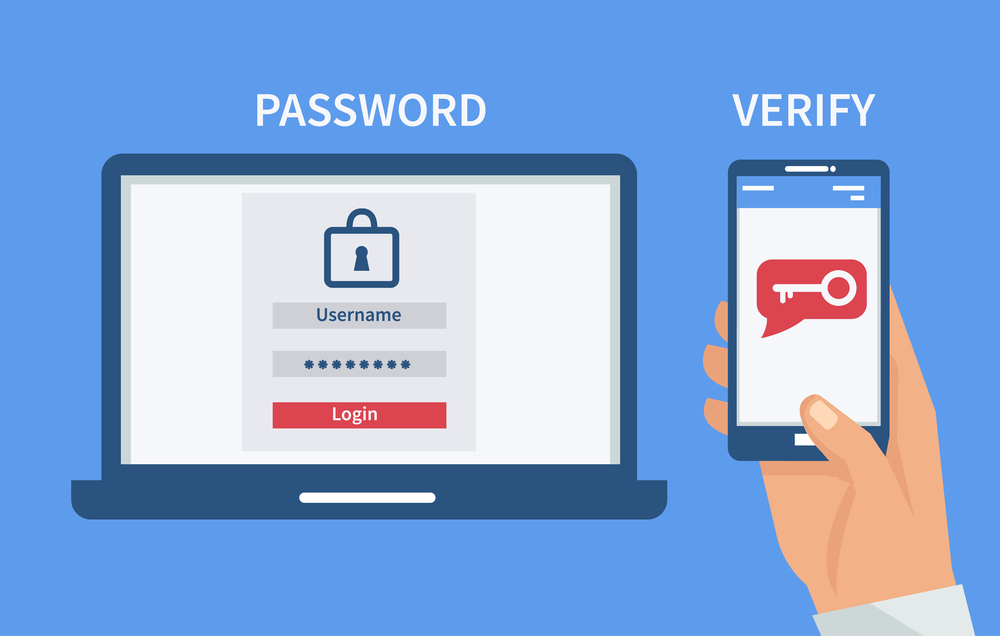
Think of Two-Factor Authentication (2FA) as adding a second lock to your front door. Normally, you only need one thing to log into an account: your password. With 2FA turned on, your account asks for two proofs of identity:
- Something you know (your password).
- Something you have (usually your mobile phone).
When you log in from a new computer or device, the website will send a quick text message or code to your phone. Even if a scammer manages to steal your password through a fake email, they still cannot access your account because they don't have your phone to get that second code.
Most email providers, online banks, and major websites offer 2FA for free in their account or security settings. Turning it on takes just a couple of minutes and gives you tremendous peace of mind.